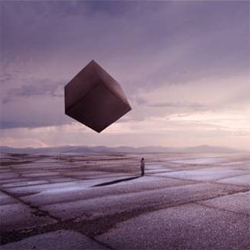
Step 1: Create a New Photoshop Image File
Let's start by creating a new image file, go to the Menu bar and click File > New, and then input the following values on their respective fields:
- Width: 1920 pixels
- Height: 1040 pixels
- Resolution: 300pixels/inch
- Color Mode: RGB Color; 8bit
- Background Contents: Transparent
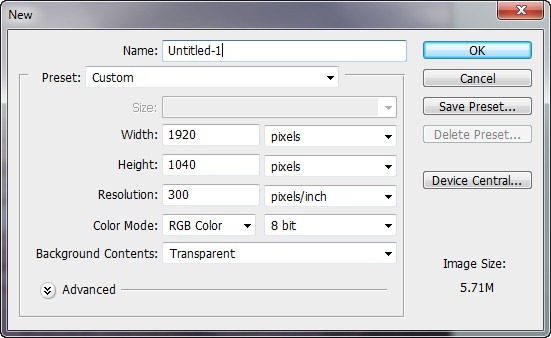
Step 2: Create the Background - Sky
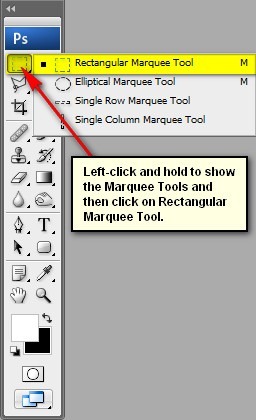
In this step, we will be creating the sky of our image. To start, open "Stormy view of Valley" by night-fate-stock. Once the stock image is open, activate the Rectangular Marquee tool (by pressing M on your keyboard) and create a selection area around the sky. See images below:
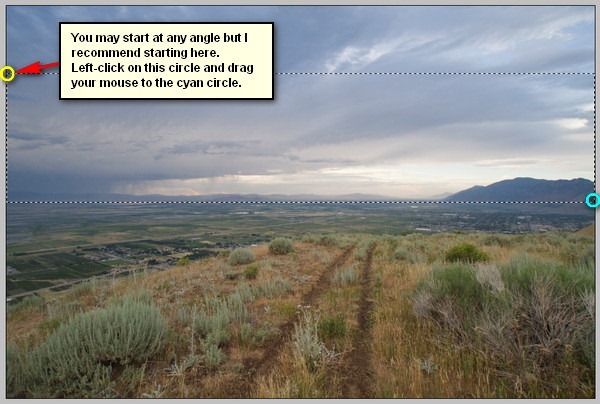
When you're done, activate the Move tool (V) and left-click on the selected region and drag it to the canvas. Take note that this sky is from a huge stock image and so when you move it to the canvas it will occupy a lot of space.
Move and position the selected area as shown on the image below:
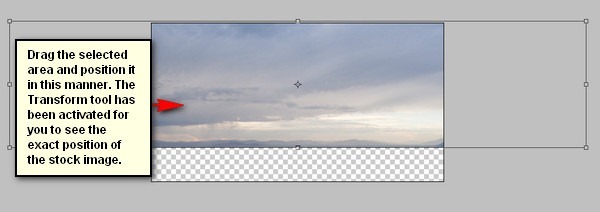
Now that it is in position, rename this layer now to "sky".
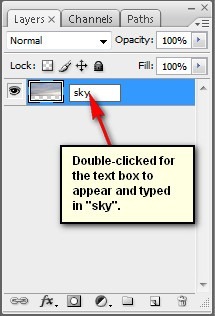
To rename a layer, simply double-click on the words: "layer 1" (you can find that on the layer window) to prompt a text box to appear. Once that appears, you may now rename the layer. See image below:
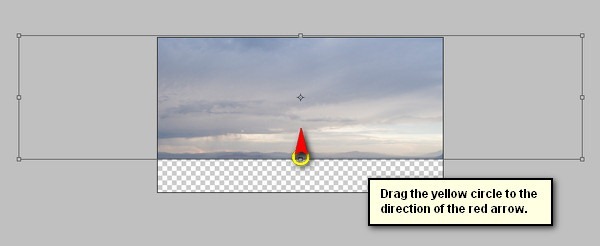
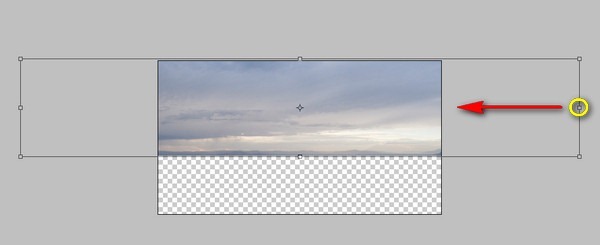
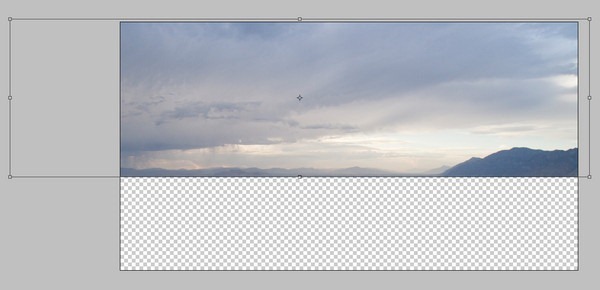
Next, activate the Transform tool (Ctrl/Cmd + T) and resize the image as shown on the image below:
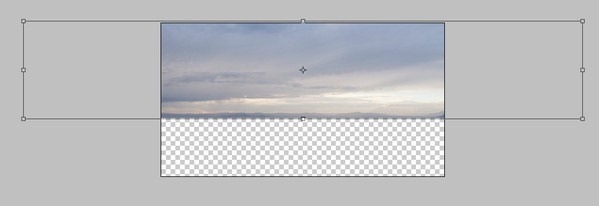
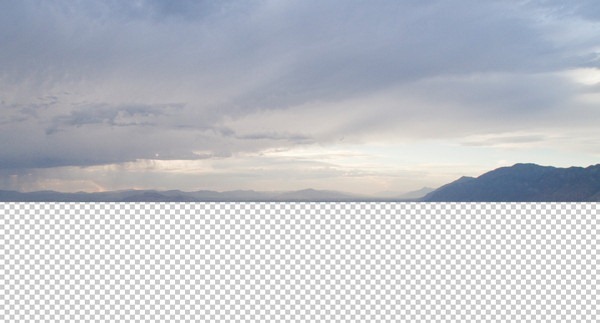
The result of that should be similar to this:

ไม่มีความคิดเห็น:
แสดงความคิดเห็น