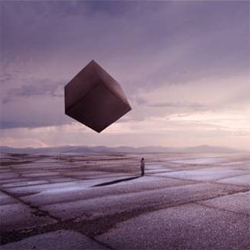
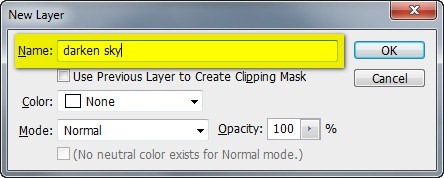
Next, let's darken the sky; to do that, make sure that the "sky" layer is selected and then create a new layer (Ctrl/Cmd + Shift + N). This process makes sure that the new layer will be created above the active layer. Now when then new layer box is open, input "darken sky" on the name box. See image below:
Now that the new layer has been created, activate the Brush tool (B) but before we start, make sure that the active Brushes are the default brushes. The default Photoshop brushes are shown on the image below, if that's not what you see, then follow the instructions below:
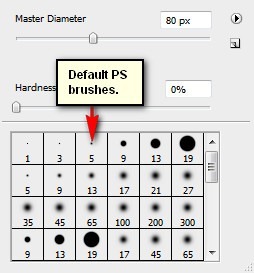
Right click the canvas while a layer is selected and while the Brush tool (B) is activated and then click on the button highlighted below:
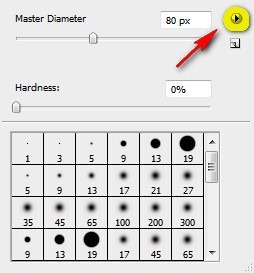
Then click on "Reset Brushes" from the contextual menu.
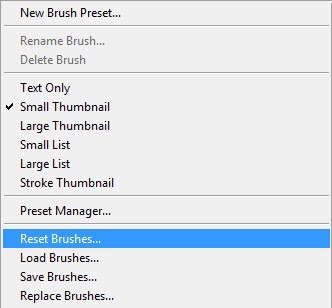
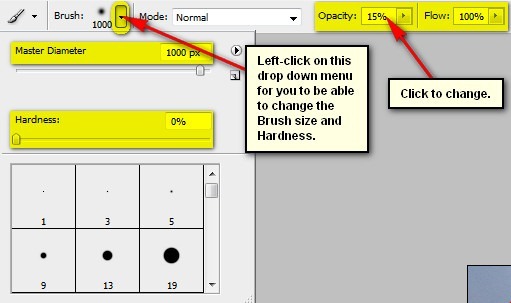
Now, that that is done input the following settings for our Brush tool (B):
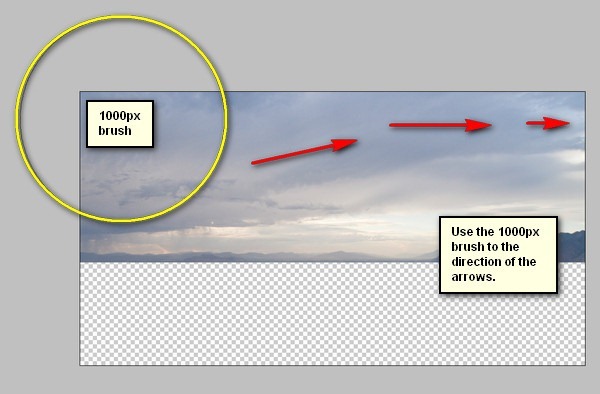
- Brush size: 1000px
- Hardness: 0%
- Opacity: 15%
- Flow: 100%
- #: 00011b
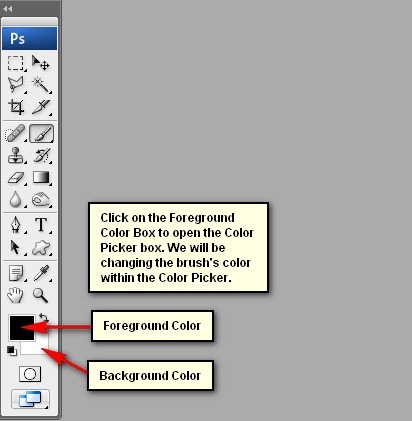
Note, the #: 00011b symbolizes the brush's color. To change your brush color to that color, simply follow the steps shown below:
Once the Color Picker box opens, input the following:
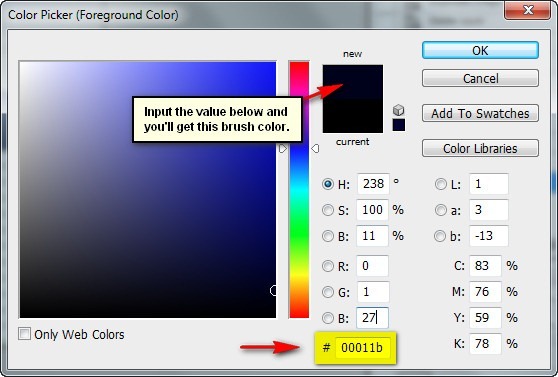
Now, your brush has a dark blue color, let's start painting!
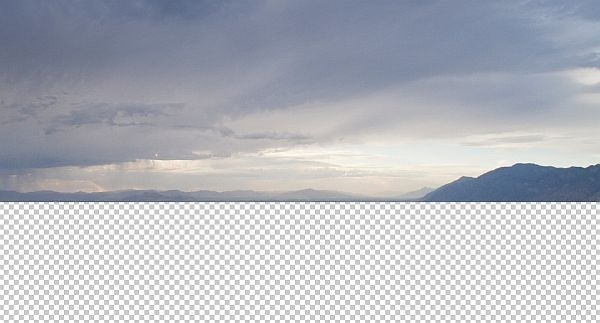
The result:

ไม่มีความคิดเห็น:
แสดงความคิดเห็น